When your system needs to install windows, there are many options that Microsoft has provided to their customers with the best ways, all of which are rather simple. However, if your Windows computer crashes with a blue screen of death (BSOD), or if your PC is running slowly, reinstalling Windows completely may be the best approach to minimize downtime and maximize efficiency.
Don’t forget to use Carrefour Promo Code at checkout to avail of huge discounts on tech products. Microsoft also provides for the retention of existing data throughout the reinstallation process, Also this reinstalling process revokes issues of updates, driver installation, and security patches. which is a brilliant feature. On the other hand, the dread of losing your data exists.
It’s understandable, as updating your operating system might be intimidating if you’ve never done it before. In this tutorial, we’ll discuss and go through the system requirements and how to install Windows without losing data. We can show you how to install Windows 10 on your computer without losing any data. Installing your windows can be done in one of three ways which are mentioned below.
- Method 1: Using the “Reset this PC” option
- Method 2: Using the Advanced Startup menu
- Method 3: Using Windows 10 ISO image file
Table of Contents
Using the “Reset this PC” Option
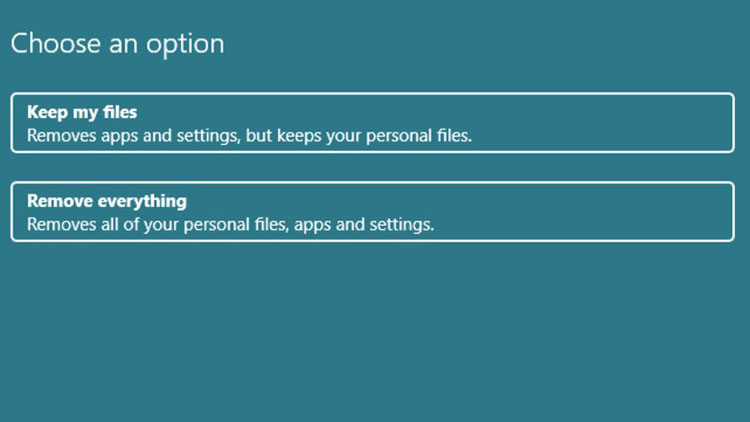
The first option is to “Reset this PC,” which may be discovered by following the instructions below: Although this is perhaps the quickest method of resetting the system, there is one drawback. Users can only keep files if they “repair this PC.” Also gone will be all user applications and programs. We suggest backing up all vital data before using this kind of reset to prevent losing pre-existing applications, drivers, and programs.
Using the Advanced Startup Menu
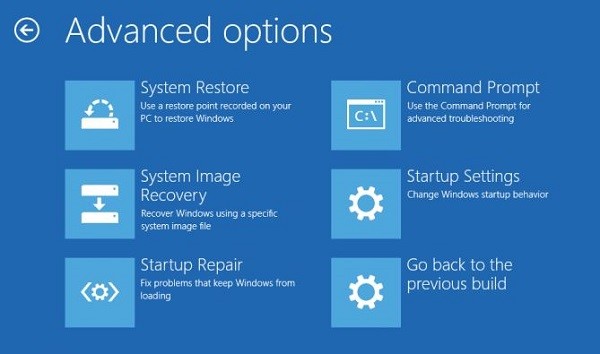
Use the instructions below to reinstall Windows 10 using the Advanced Startup option.
- Check out the left corner of the screen there is a button you will press the Start button.
- Select “Settings.” from the left panel of the start menu.
- Then, under “Update & Security,” select “Recovery.”
- In the right pane, click “Restart immediately” under the “Advanced startup” section. The Windows Recovery Environment (WinRE) mode will be used to restart Windows. Alternatively, you may access the Windows 10 Advanced Startup settings by hitting the ‘F11’ button as soon as your PC turns on. This method comes in handy when you can’t boot your computer normally.
- Once you’ve entered WinRE mode, click “Troubleshoot.”
- On the next screen, click “Reset this PC,” which will take you to the system reset window.
- Choose “Keep my files,” then “Next” and “Reset.”
- When a box opens asking you to continue reinstalling the Windows 10 operating system, click “Continue.”
Using Windows 10 ISO Image File
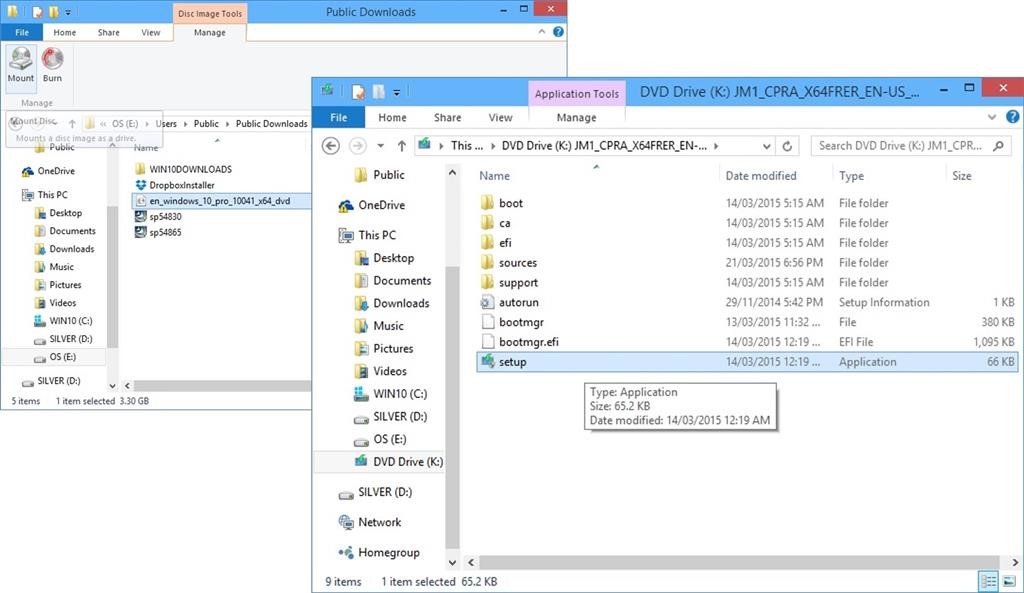
An ISO file, frequently called an ISO image, is an archive file that includes an exact duplicate or image of data present on a CD or DVD. If your PC is bootable, you may reinstall Windows 10 and save your files.
- The procedures to reinstall Windows 10 using an ISO image are as follows:
- To produce a Windows 10 ISO file, download Microsoft’s media creation tool.
- To proceed, right-click on the freshly produced ISO file and pick “Mount” from the menu.
- At the root directory, double-click the Setup.exe file.
- When prompted to “Download and install updates,” select the appropriate option. If your computer is linked to the internet, select this option. If not, choose “Not at this time.” To proceed, click “Next.”
- In the popup box that appears, select “Change what to retain.”
- Depending on your storage demands, choose from “Keep personal data, programs, and Windows settings,” “Keep personal files exclusively,” or “Nothing.”
- To install Windows 10, click “Next.”
- Your computer will now restart with the previously stored settings.
After reinstalling Windows 10, you may restore your Applications
You may then install the Media Creation Tools after restoring the backup. Select and Download tools Now, install the tool, open it, and select Upgrade this system Now. This will save your files and programs while updating you to the most current version possible. Since it reinstalls Windows, it will also bring all of your Updates up to date and resolve most problems.
If not, then follow the shown procedures in this link to create the greatest possible Clean Install of Windows that will remain that way as long as you use the tools and methods provided, has no documented issues, and is better than any amount of money could buy. You can also check windows setup to get more ideas.
There is one additional approach that users frequently employ in order to restore lost data. They swap out the hard disc in their malfunctioning computer for one in another desktop computer. They remove its side panel and connect it directly to their computer using a spare SATA connection and power cord. Then, after restarting their computer normally, they may access the malfunctioning computer disc (which will appear as “D: drive”) and retrieve their data. You’ll get an administrator warning, but all you have to do is click ‘Yes’ to gain access to the files and copy them….even if their account is password secured.
Everything that can be done while maintaining the best possible install is covered, including all recommended practices and optimizations. For the past 10 years, millions of People have tried every year Clean Install guides, and not a single one has ever returned with an issue that we have mentioned in this article. So follow these steps to get the finest Windows installation possible. we hope this article is useful for you.