
Is it time to replace your old laptop? We are sharing the simple and free steps that anyone can take to speed up a Windows 10, 8, or 7 laptop. Every laptop, even the most recent and fastest, experiences lag from time to time.
This can be caused by a number of factors, ranging from minor fixes like having too much software running in the background to more serious issues like running out of RAM or disc drive capacity, or even a fragmented hard drive.
Table of Contents
Try These 8 Solutions to Speed Your Laptop
Whichever the cause, a slow laptop should be the last thing you want when struggling to meet a project deadline – which, ironically, is when many people discover their computer is falling behind. After all, it was hectic.
Remove programs from the system tray

If your computer takes a long time to boot up, it’s possible that you have too many applications running at the same time in Windows. Moreover, Noon.com carries a wide range of products from well-known brands such as Apple, Lenovo and Samsung, among others. You can also get the best deals and save a lot of money by using the most recent Noon promo code for your online shopping.
System tray items frequently launch at startup and remain active while you use your computer. To access these options, click the upward arrow on the right side of your taskbar. Close any applications that aren’t needed by clicking right on them.
Windows, drivers, and applications should all be updated
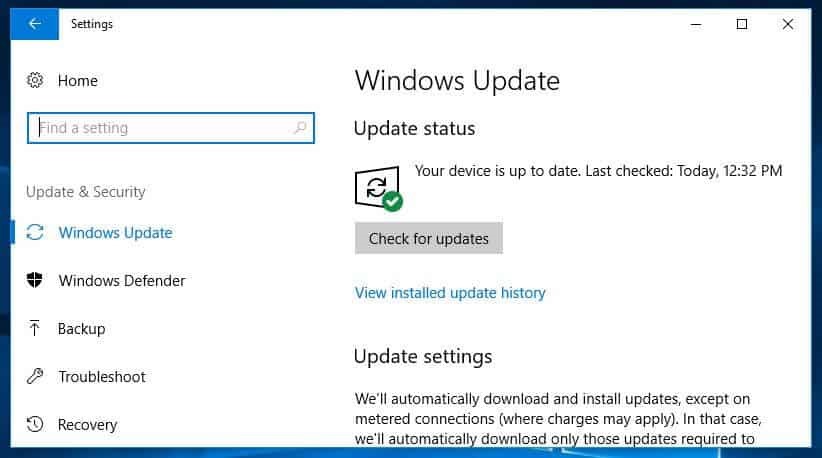
Updating your software is a good security precaution. I t has the potential to improve performance. When an update is available, Windows will automatically alert you. All you have to do now is make sure you don’t put it off any longer. You can always double-check if you think you might have missed an update.
Select Settings or the settings icon from the Start menu. Then navigate to Updates & Security > Windows Updates. Drivers and software, as well as your Windows operating system, should be kept up to date. Again, this is advantageous for both security and performance. If you believe you missed an update, a quick web search should yield the version number
Delete unnecessary files
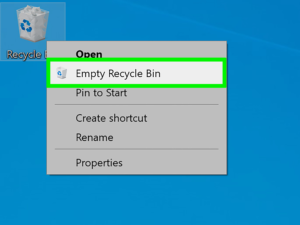
Like our closets and drawers, our computers become overcrowded. While you cannot see it, you are aware that it exists and that it may be interfering with the operation of your computer. This is especially true if you deal with a large number of large files on a daily basis, such as high-resolution photographs, audio files, and films.
Make it a habit to remove files and folders once a week and then empty the recycle bin to free up space. If you do this on a regular basis, you’ll be more likely to remember what’s in the files and folders and will be less concerned about accidentally deleting something important. A useful tip: HDDs typically run at full speed until they reach 90% capacity. So, if you check how much space is available.
Search for applications that make use of resources
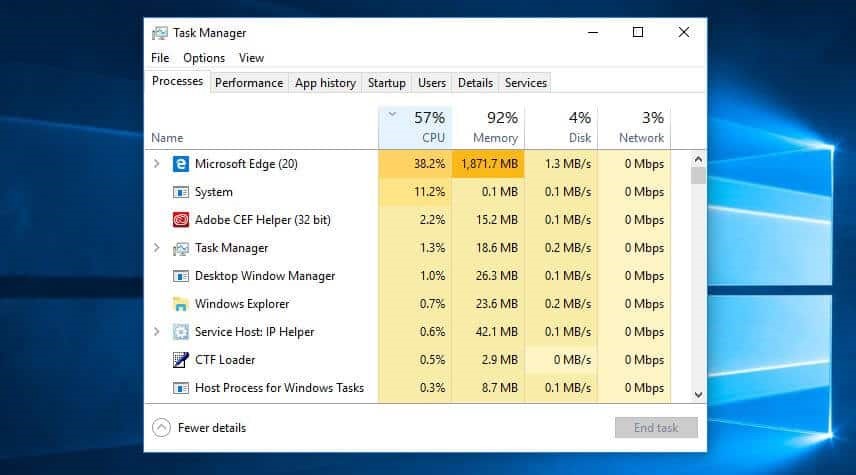
If your computer suddenly becomes noticeably slower, it is most likely due to a software issue. Examine your task management system to see what is consuming your resources. Select Task Manager by right-clicking the taskbar. Click More information to learn more about the programmes that are currently running on your computer.
The Processes tab should be the default view. You can sort the list by clicking each heading to see which programmes make the most use of that resource. If you need to close something, close the main programme first. Return to the Task Manager page and select End Task. Windows 7: Instead of going to Task Manager, look for System Configuration.
Look into your power options
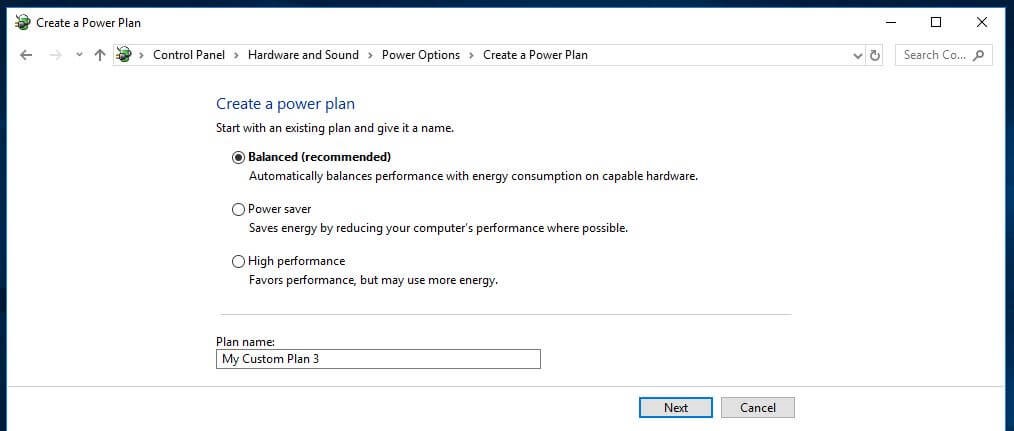
Windows includes a number of pre-configured ‘power plans’ to meet your requirements. The default setting is Balanced, which takes both performance and energy consumption into account. The latter, on the other hand, is only a concern if you’re running on batteries or trying to save money on your power bill. As a result, you may want to reconsider your approach.
If your PC is running slowly, the High performance plan, as the name suggests, is a better option. Although this option uses more energy, it prioritises performance and should speed up your system. You may construct your own unique plan in addition to the usual ones. Navigate to Control Panel > Hardware and Sound > Power Options > New Power Plan. Choose an existing plan to begin with, give your new plan a name, and then click Next.
Remove apps that you no longer use
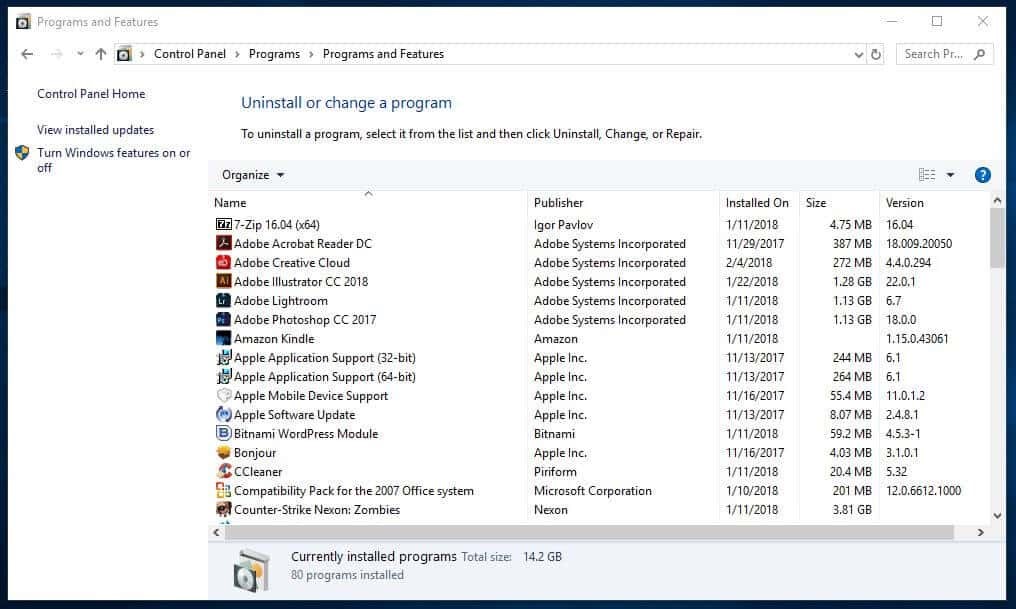
We frequently install large apps without thinking about how much space they take up. If you suspect this, delete any apps you no longer require. Even if you only use the application occasionally, if it is extremely large, it may be worth simply reinstalling each time you require it.
To uninstall an application, navigate to Control Panel > Programs > Programs and Features. Examine the programmes and decide which, if any, you don’t need. If you have any questions about a particular piece of software, you can simply use a search engine to find out more. You can also use a programme called PC Decrapifier to help you distinguish between the good and the bad.
Activate or deactivate Windows features
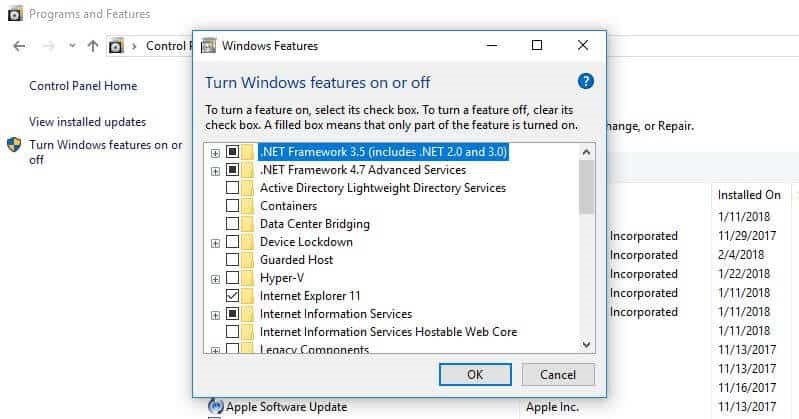
While you’re on the Programs and Features page, look for any Windows components that you don’t need. Turning on or off Windows features will display a list of these components.
Take care not to turn off anything that you actually need. Again, conducting a search for anything you’re unsure about is a good idea.
Maintaining the smooth operation of everything

After you’ve cleaned up your computer with some of the suggestions above, you’ll want to keep it running at peak performance. It’s a good idea to schedule a monthly cleaning to avoid becoming frustrated with poor performance. You’ll be fine if you use the guidelines listed above as a checklist.