
Here are a couple of fixes you can try if the number or numeric lock is not working on windows 10. The first option is to physically check the keyboard. Is there any obstruction or blockage that might be preventing the key from working? If it is a detachable keyboard, check the connections to make sure that it is properly connected.
Also, if you have another system that you can plug the keyboard into, try that. If it is not working on the other system, then it is a hardware issue and you should replace the keyboard.
2. Run the keyboard troubleshooter.
Type in troubleshooter in the task search. Click on additional troubleshooters, look for keyboard troubleshooter and click run.
Follow any on-screen prompts and then restart your computer. Check to see if the issue is resolved.
3. Check the keyboard drivers.
Open the device manager and go to the keyboard driver. If you recently updated the drivers, see if you can roll those back and then check to see if that was the culprit. Otherwise, right-click on the driver and click update.
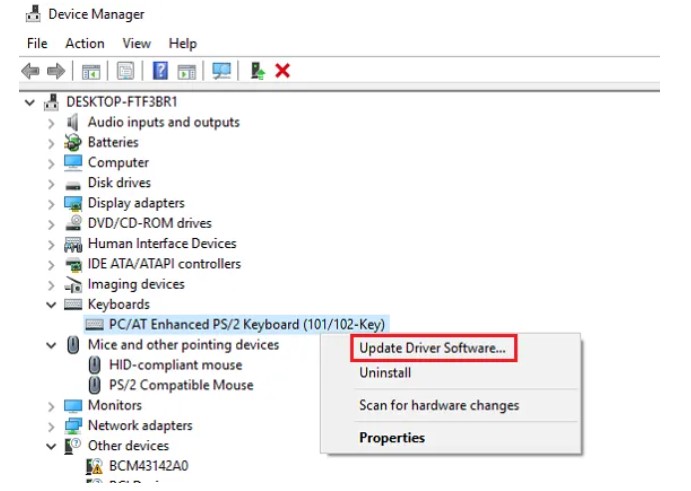
After that restart and see if the problem is corrected. If not, you can go to the driver, uninstall it, then restart your computer. Go back to the device manager and then go to action and click scan for hardware changes. Restart your computer and check to see if it is working then.
4. Registry editor
We can look at the registry entries go to the registry editor. First, navigate to hkey_current_user control panel keyboard locate initialkeyboardindicators double click on it and make sure that the value is set to 2, then click olay next go to hkey_users .

Default control panel keyboard in the registry string initialkeyboardindicators make sure that the value is set to 2147483648, then click okay close the editor, and restart your device. Check and see if it works.

5. Turn Off Mouse Key
Try this and see if that helps:
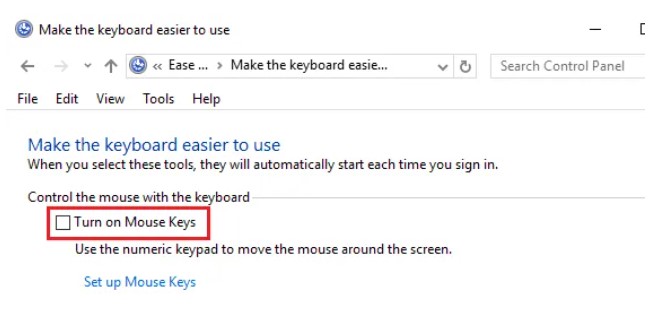
- Go to the Control Panel from the Start Menu.
- Navigate to the Ease of Access Center.
- Go to Make the keyboard easier to use.
- Navigate to Control the mouse with the keyboard and uncheck the “Turn On Mouse Keys” option.
- Click on Apply and then on OK.
Basically, it might all boil down to a simple settings issue, which if true would be resolved in this step. You should be good to go.
Here are a few fixes and suggestions if your Numeric Lock is not working:
-
- Troubleshoot in Clean Boot State
- Update your Device Drivers
- Install the Driver in Compatibility Mode
- Turn Off Mouse Key
- Registry Editor method
You also might look at this solution if the numeric lock is not working
Still problems and the numeric lock is not working look at the Microsoft community